Widgets let you engage with Read the Room passively, right from your home screen or lock screen — no notifications needed. They provide a simple way to check in whenever the mood strikes.
Setting up a widget is the best way for you to support the nonprofit platform, after leaving a nice app store review!
iOS
Home Screen Widget
To set it up:
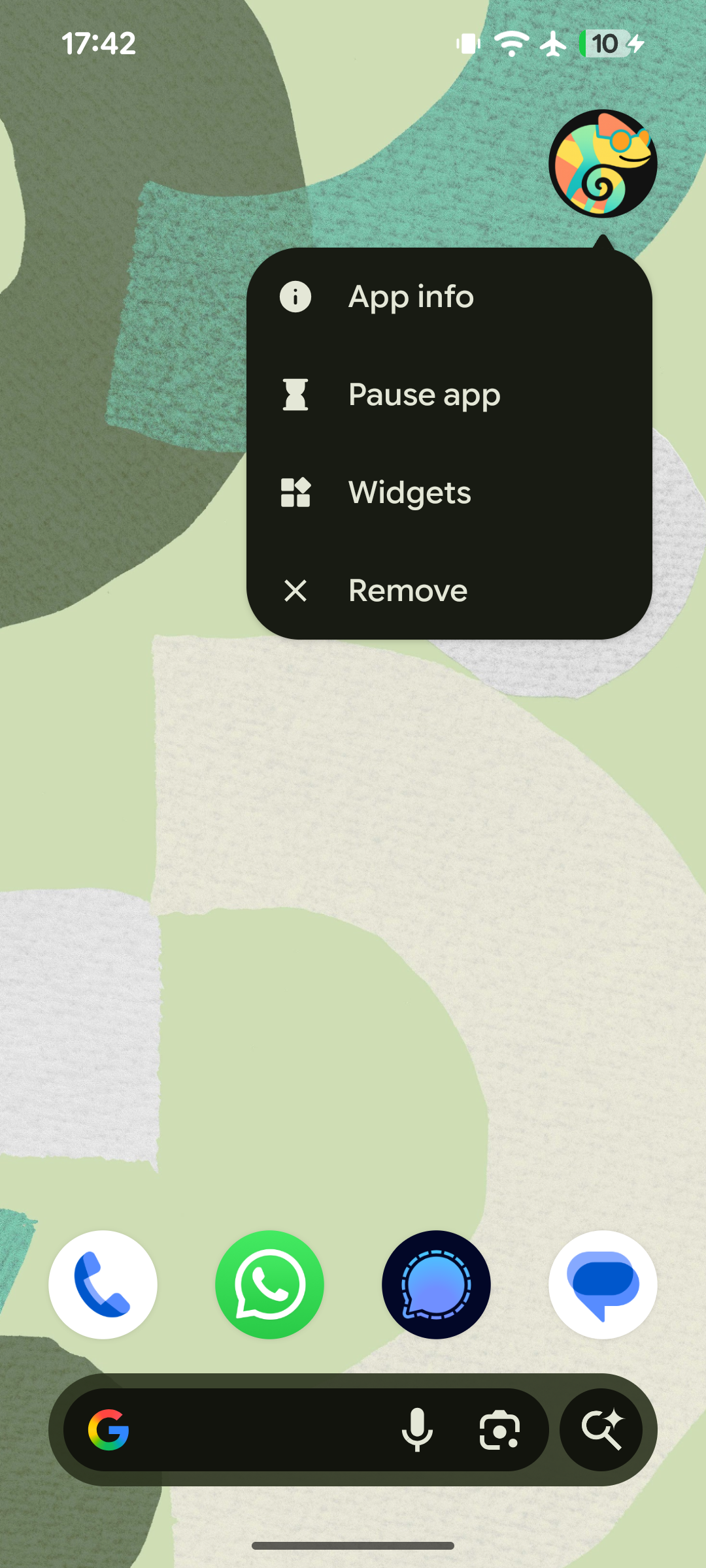
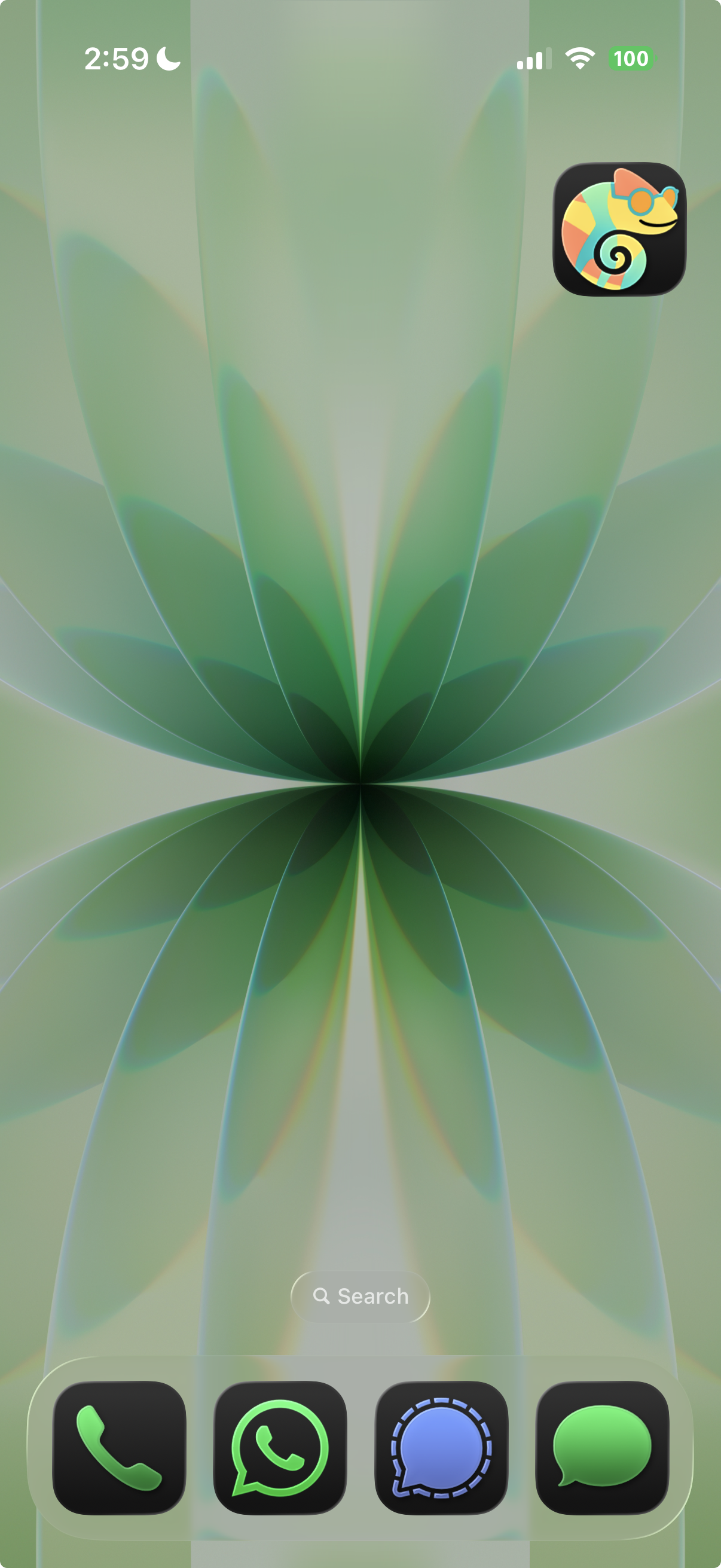
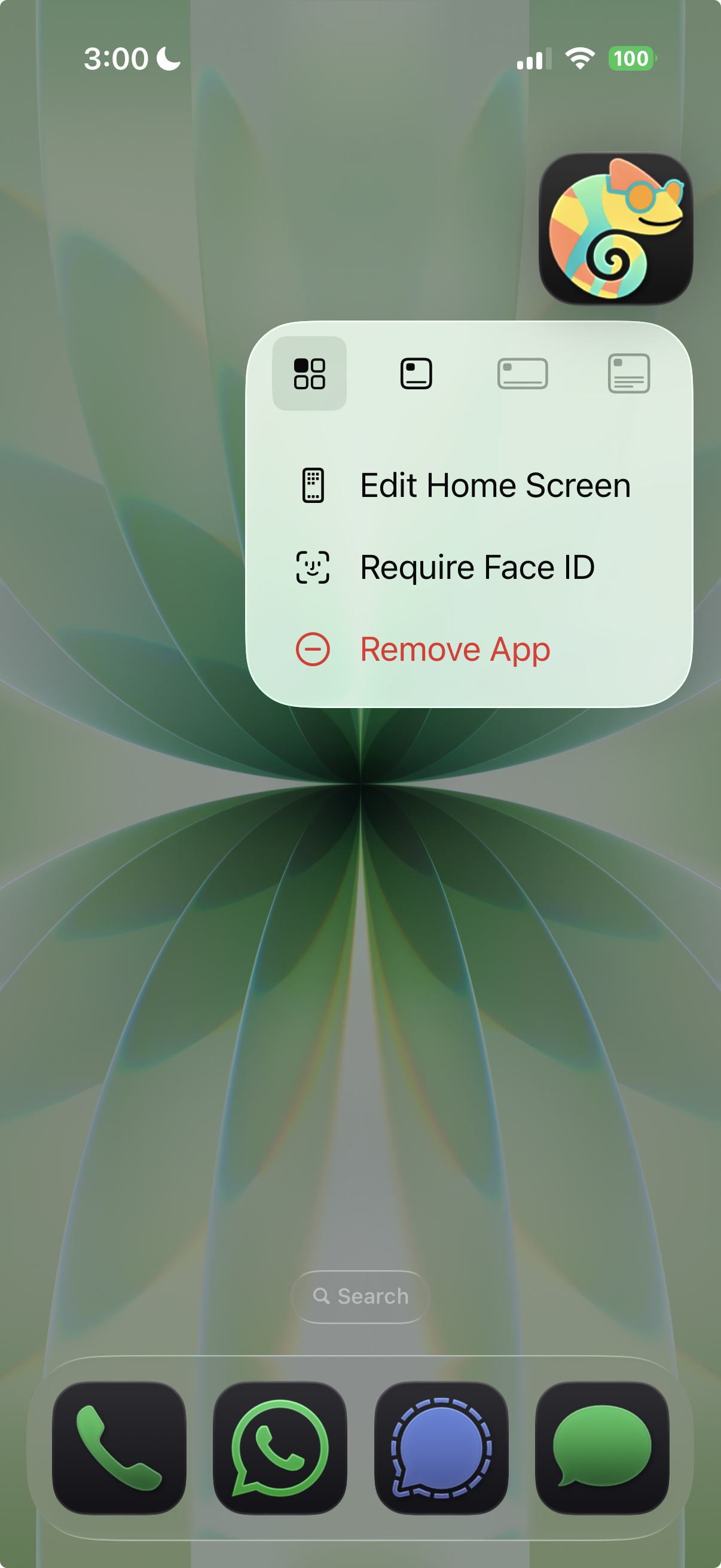
- Long press on the Read the Room app
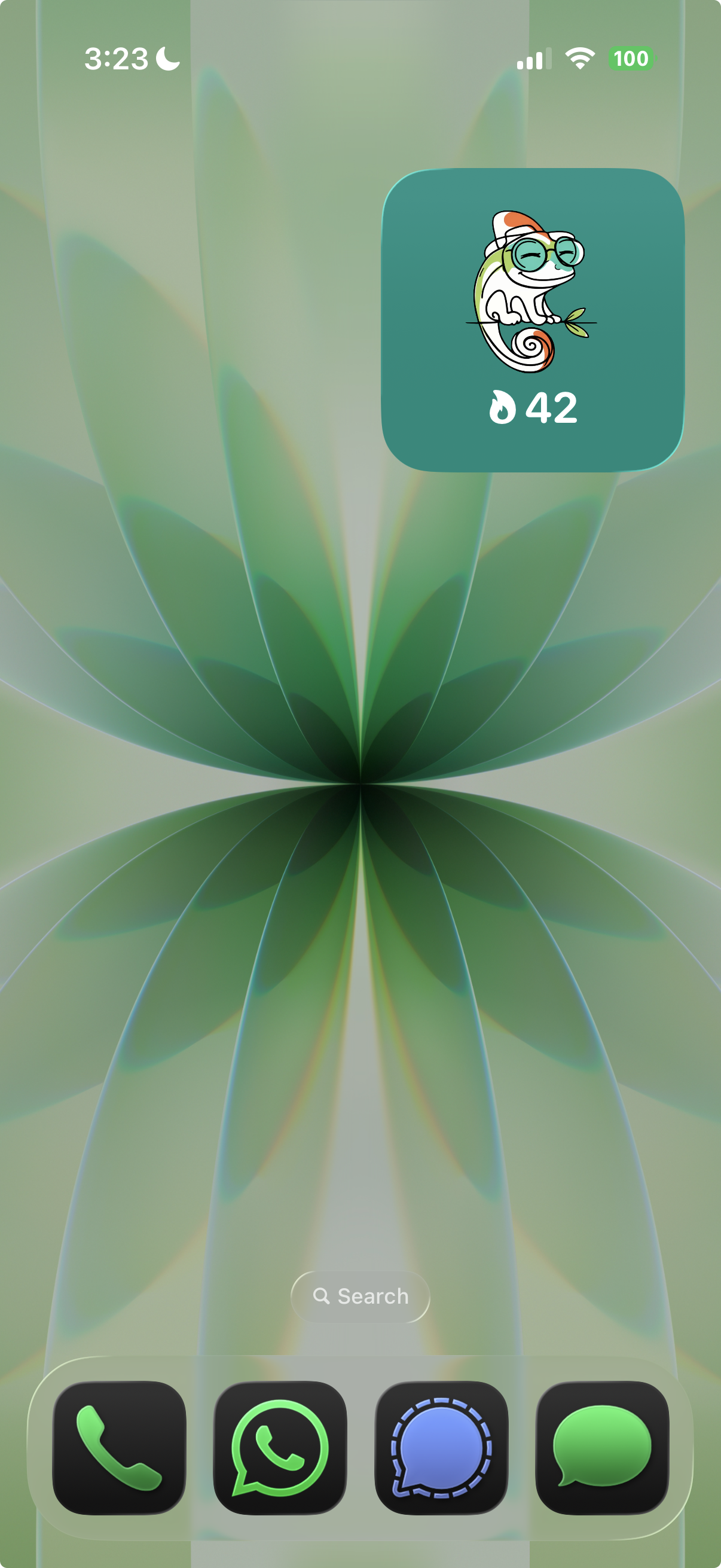
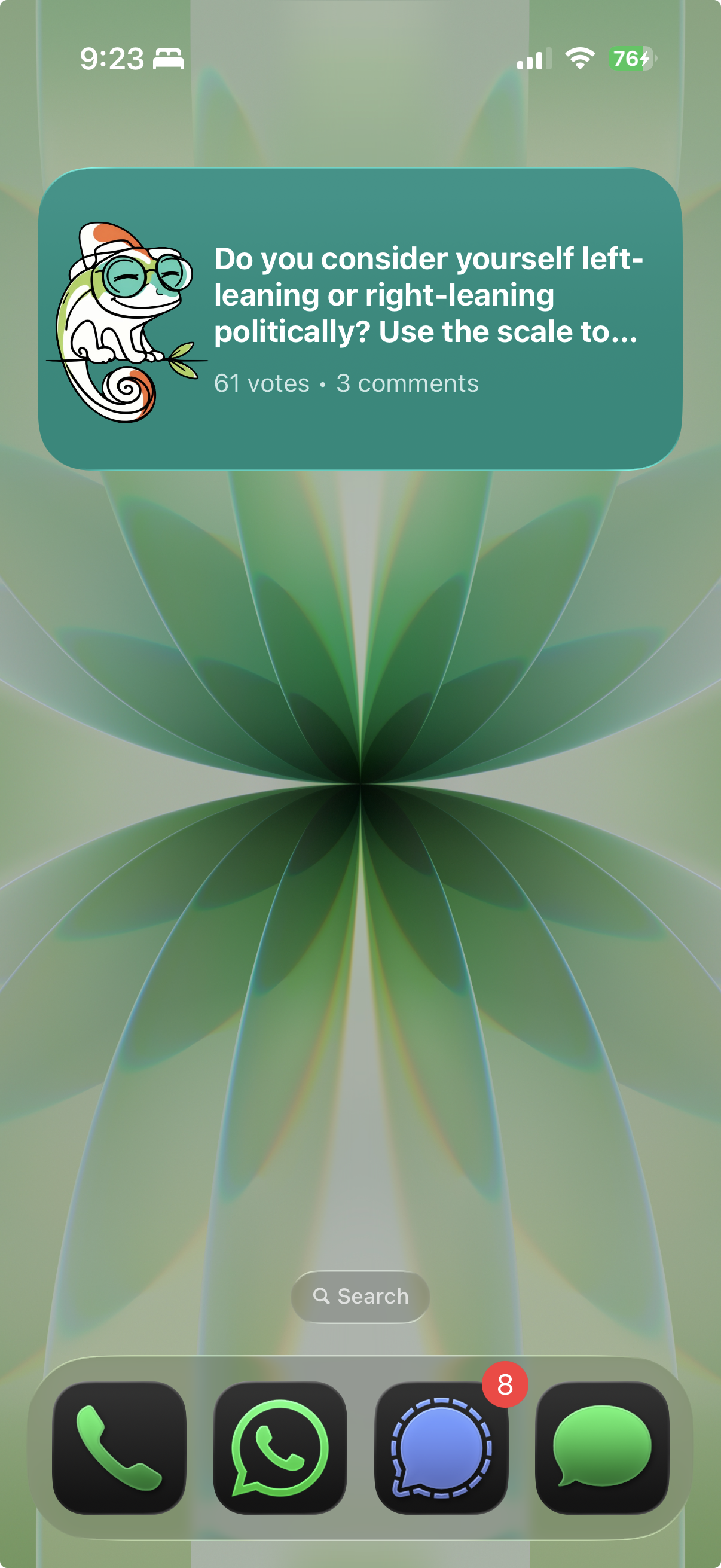
- Select the icon for a 2x2 or 4x2 widget on the top row
- Place it somewhere you’ll enjoy. Welcome Curio to your life!
The home screen widget gives you a quick look at your streak and trending polls — a gentle nudge to jump in when something catches your eye.
Lock Screen Widget
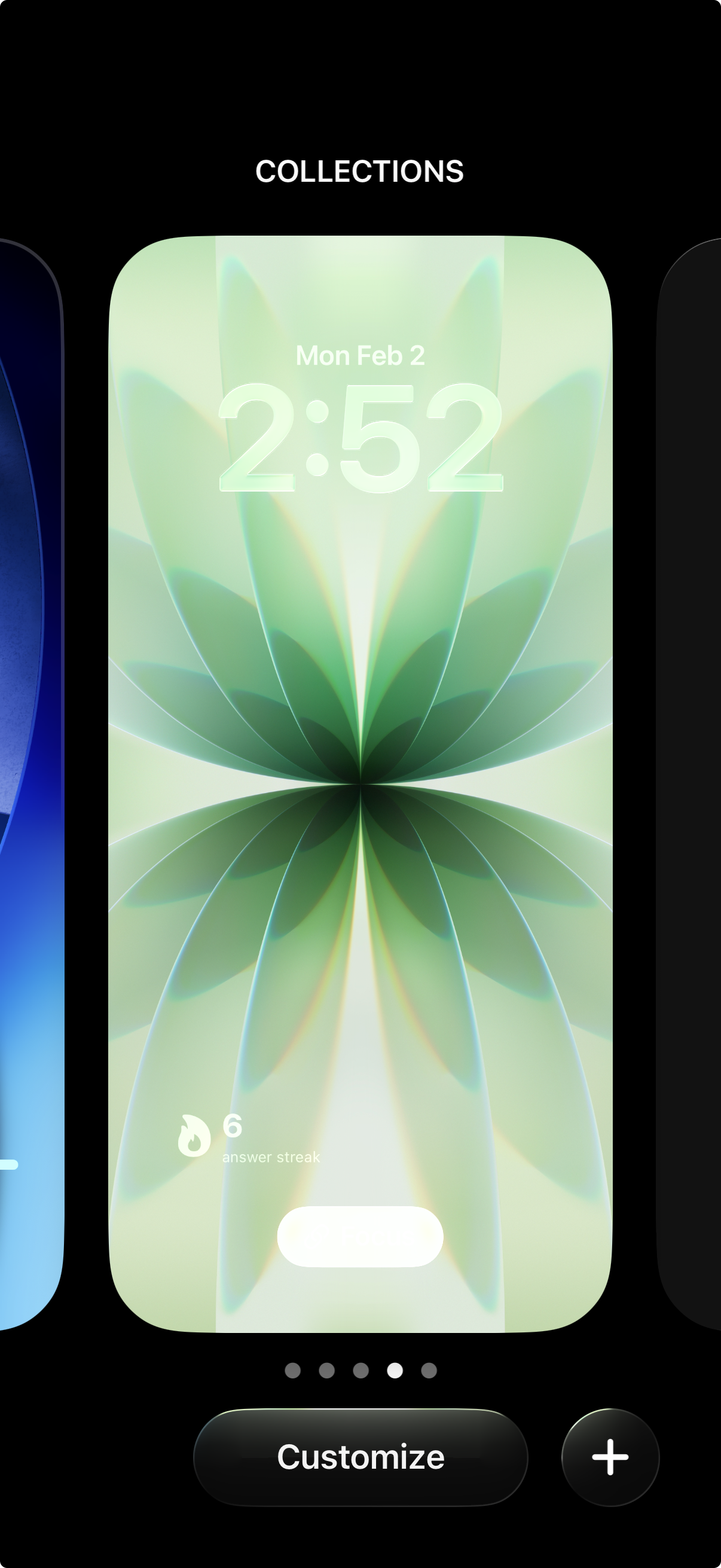
Your lock screen is the first thing you see when you pick up your phone. Adding an RTR widget there means you can see your answer streak at a glance whenever you check your phone.
To set it up:
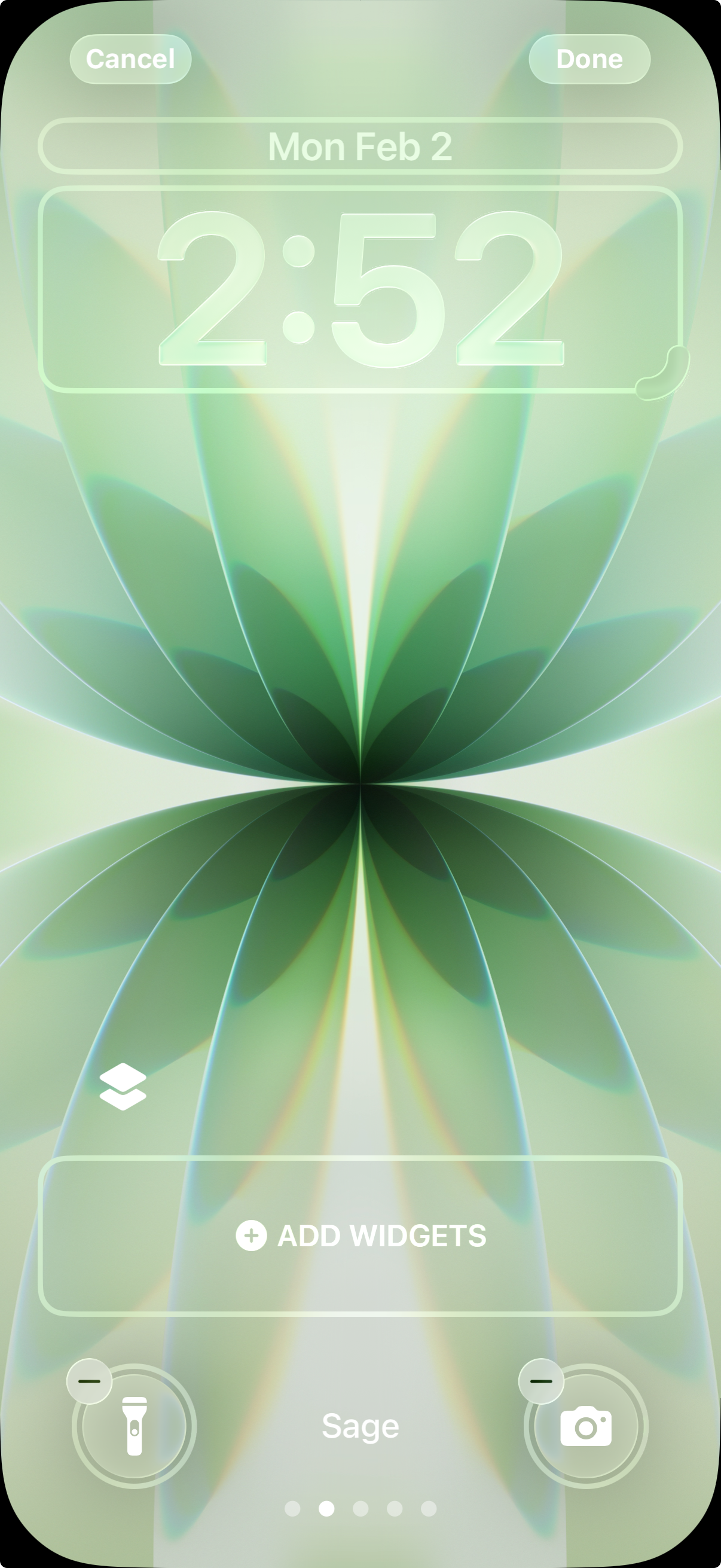
- Long press on your lock screen
- Tap Customize
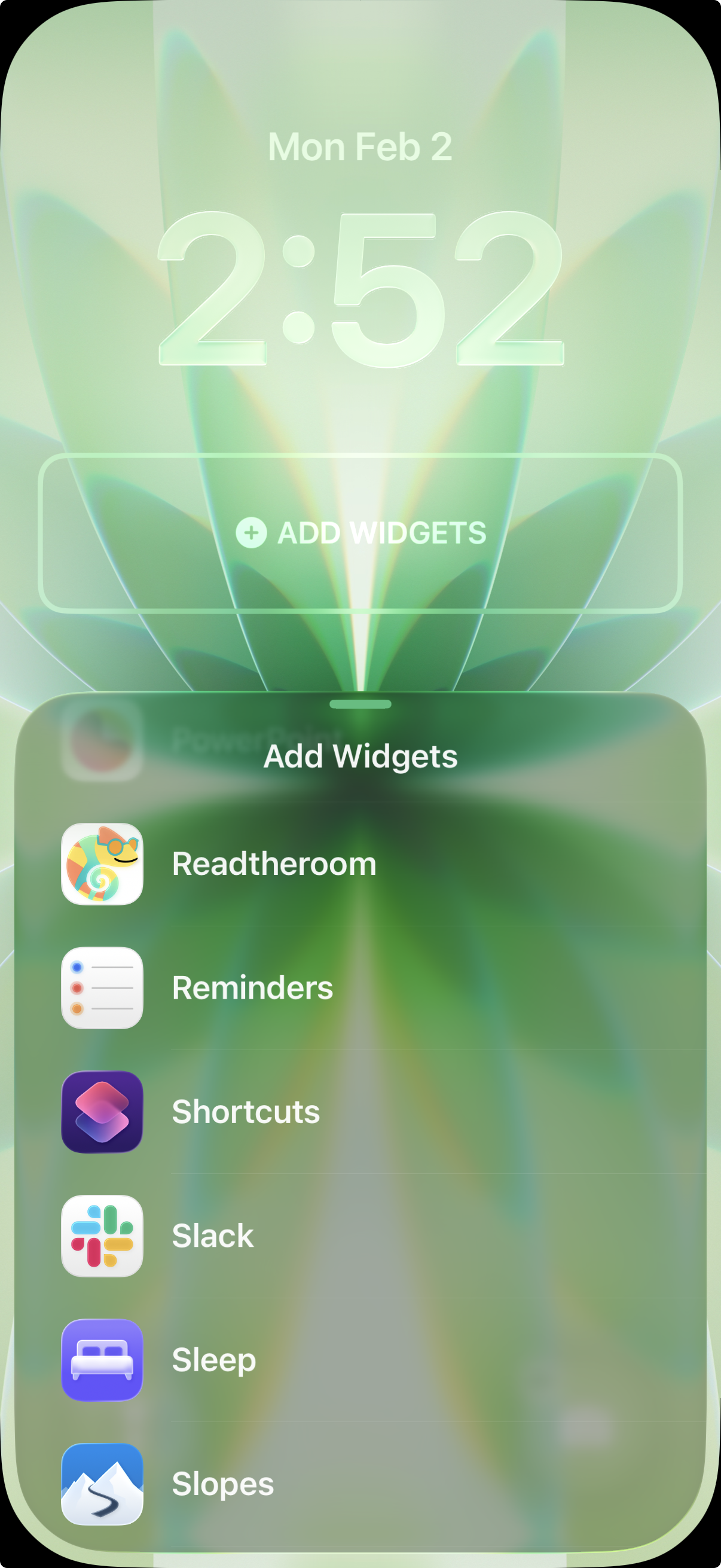
- Select Add Widgets
- Search for Read the Room
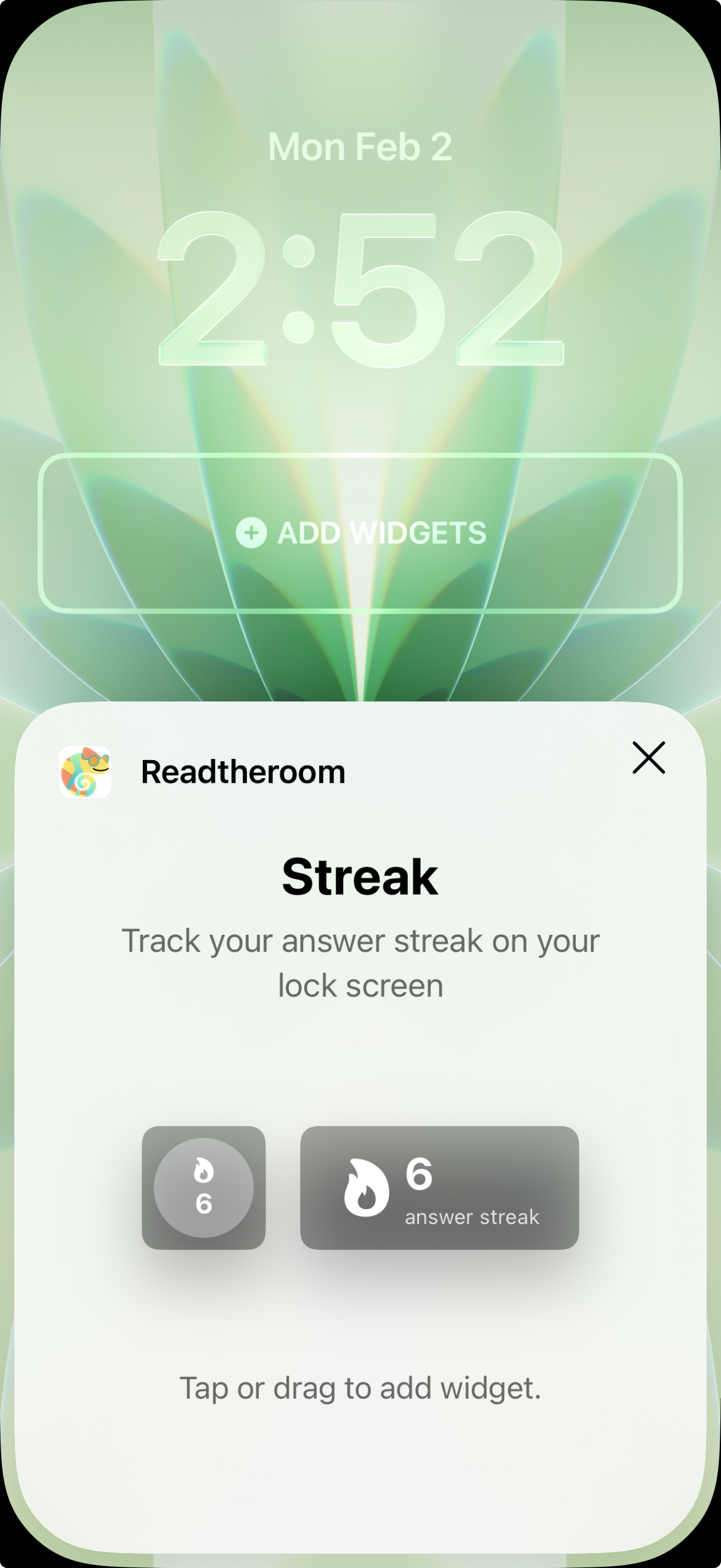
- Choose the Answer Streak widget
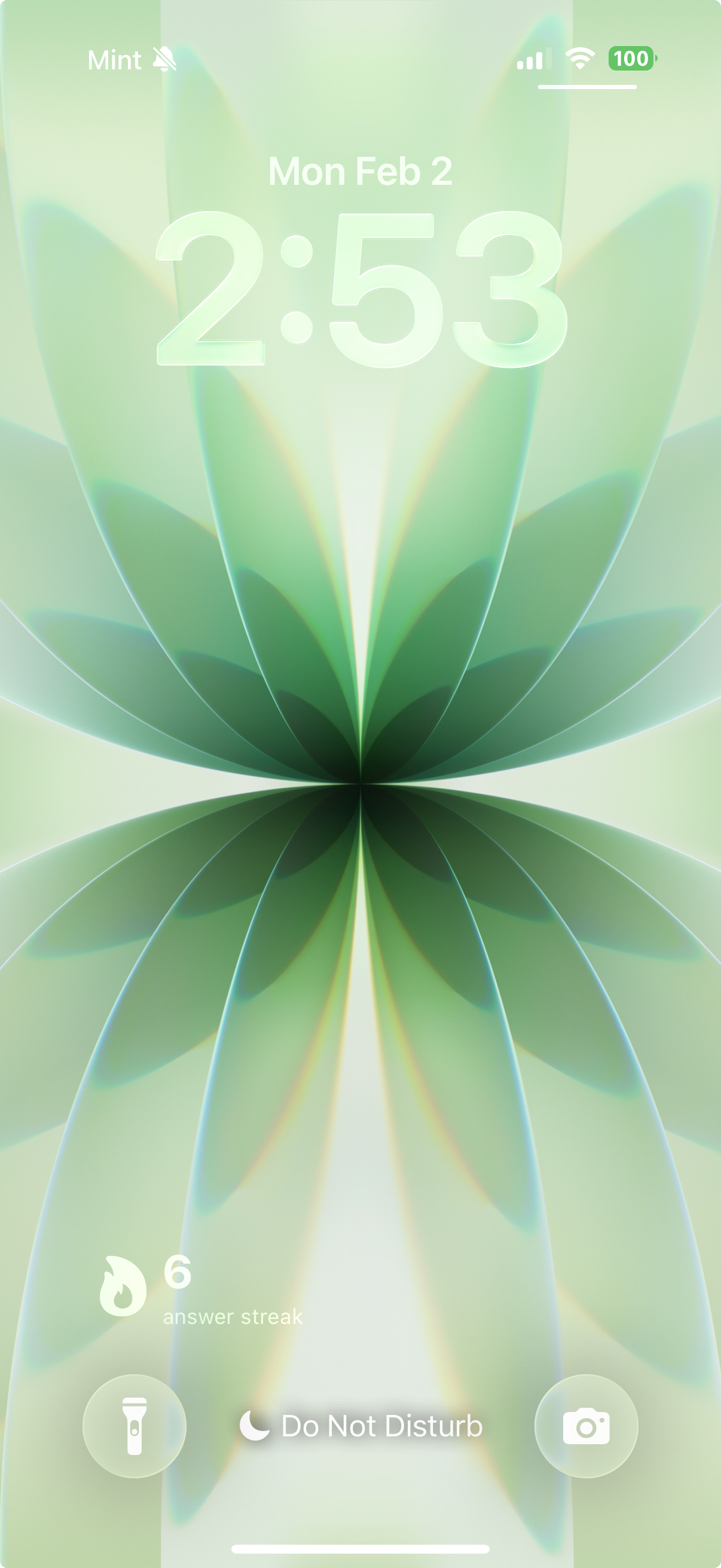
- Place it where you’d like and tap Done
The lock screen widget displays your current streak count so you always know where you stand.
Android
Home Screen Widget
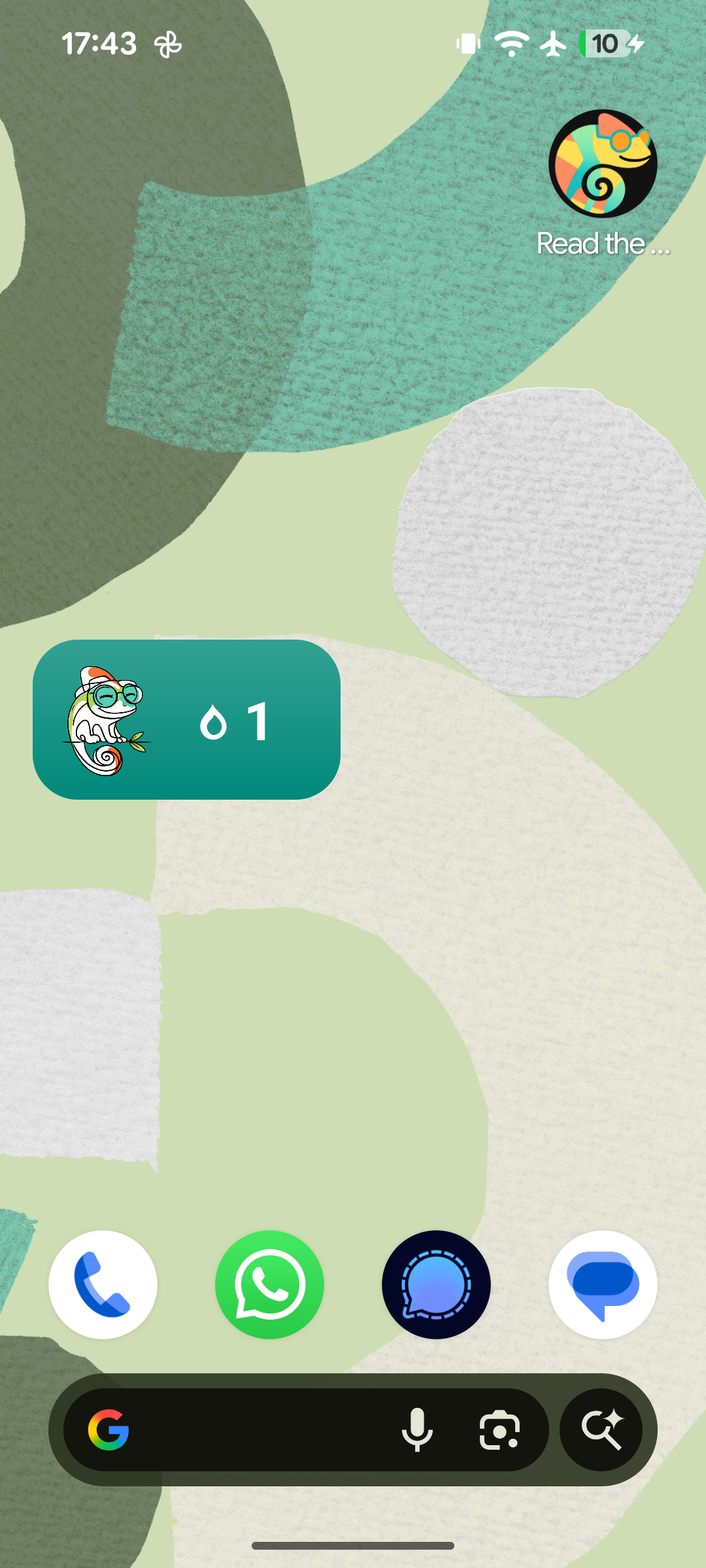
On Android, you can add an RTR widget directly to your home screen for easy access.
To set it up:
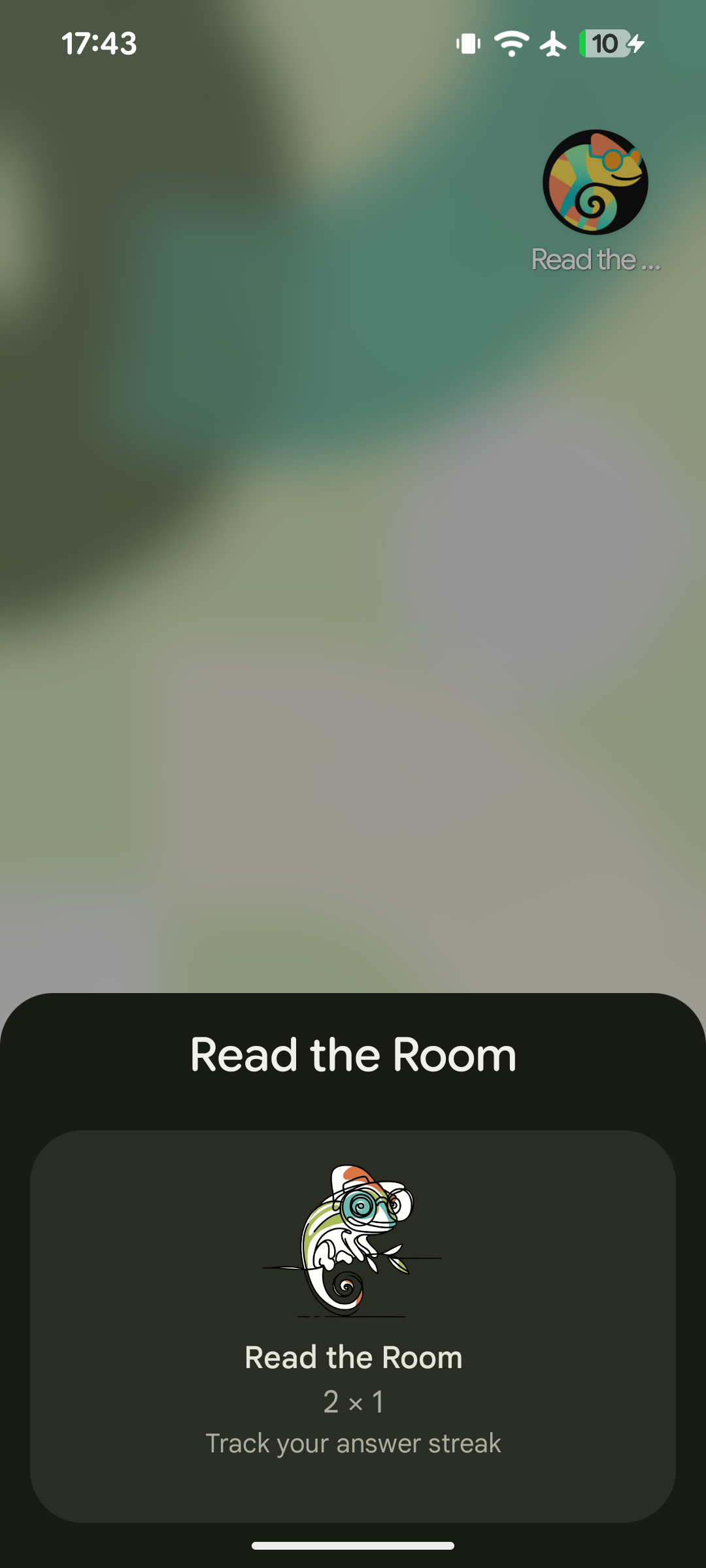
- Long press on the Read the Room app.
- Tap Widgets, and select which one you want.
- Drop them where you’d like, welcome Curio into your life!